How To Connect BingX to AstraBit
This guide explains how to connect your BingX account to AstraBit using API keys so the two platforms can communicate securely.
The steps cover where to find API settings on BingX, how to create and configure keys, and where to enter that information in AstraBit.
This article does not provide trading advice and is only for technical setup.
Users who register for BingX through this link for the first time are eligible for the Freemium plan, where you can earn credits based on trading volume to help reduce or cover costs associated with AstraBit products or services.
- You are trading with Perpetual Futures
- You have a minimum balance of at least $100 of the base currency (e.g., USDT/USDC or the same currency for inverse) in your BingX Futures wallet
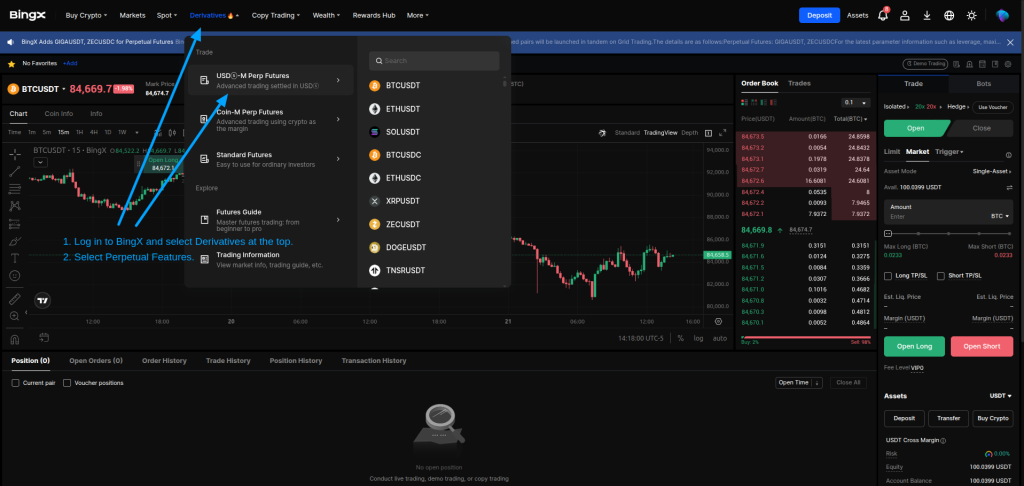
Step 1: Log in to Your BingX Account
- Log in to your BingX account.
- Click your profile icon in the top-right corner.
- Select API Management.
⚠️ Important:
- You must complete identity verification (KYC) before creating API keys.
- Cryptocurrency transactions are irreversible.
Step 2: Open API Management
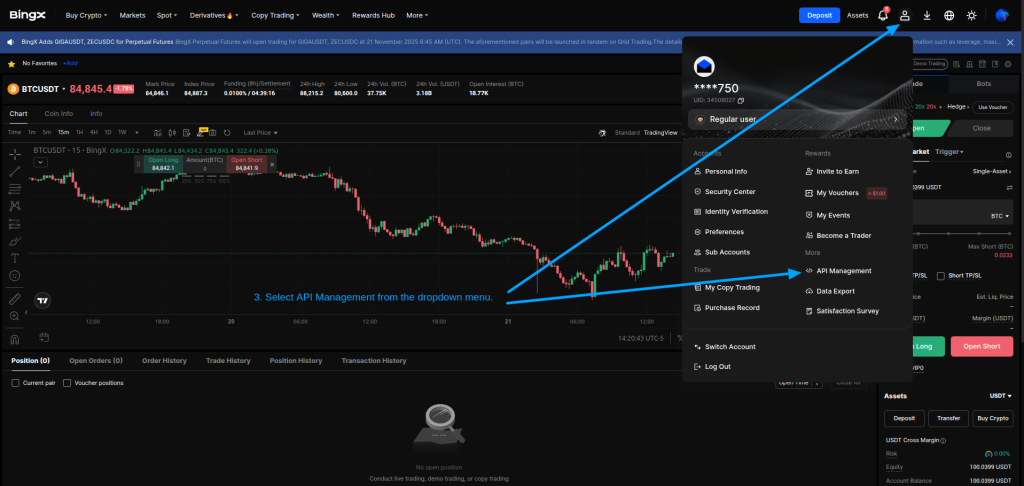
- Click your Profile icon (top right)
- From the dropdown menu, select API Management
Step 3: Create New API Key
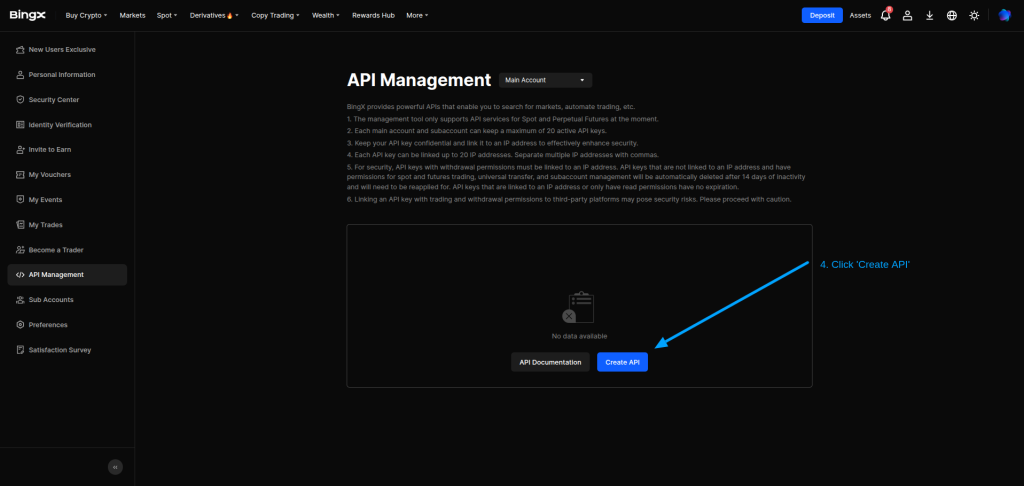
- Click Create API
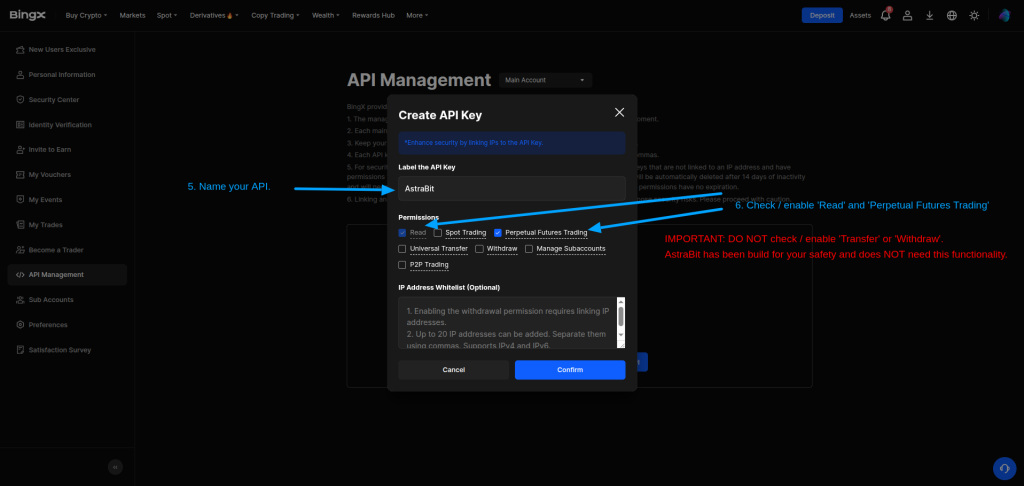
Step 4: Configure API Management
- Click your Profile icon (top right)
Enable the following permissions:
- Read
- Perpetual Futures Trading
Do NOT enable:
- Withdrawal
- Transfer
- Universal Transfer
⚠️ Important:
AstraBit does not require withdrawal permissions. Keeping them disabled improves account security.
Step 5: Complete Security Verification
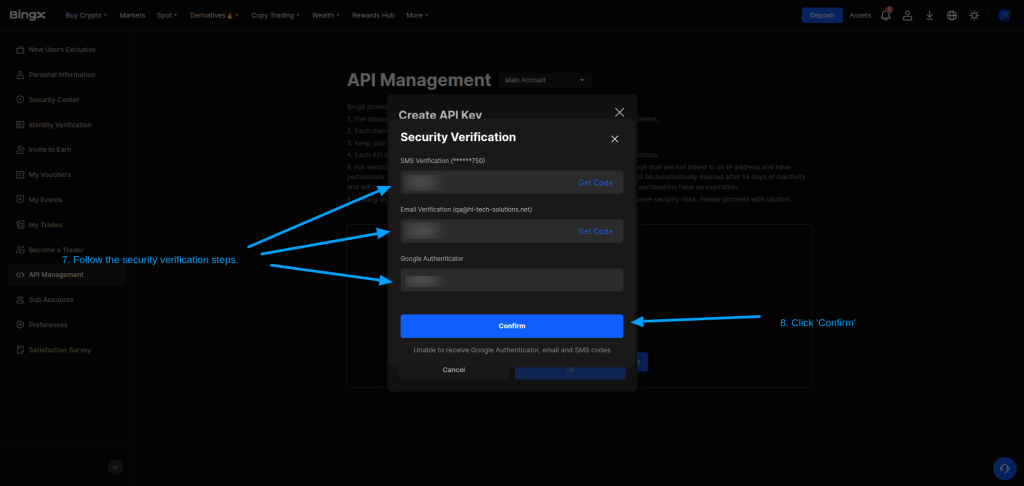
- Complete required verification:
- SMS code
- Email code
- Google Authenticator (if enabled)
- Click Confirm
Step 6: Copy API Keys
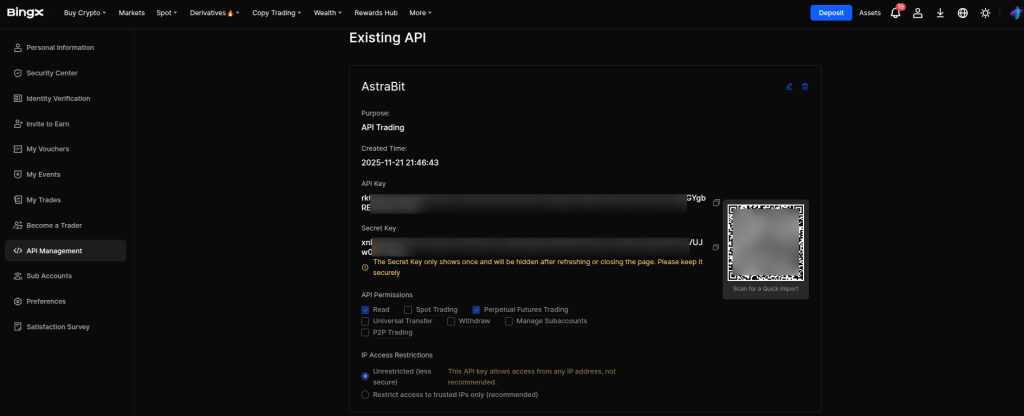
- Copy your:
- API Key
- Secret Key
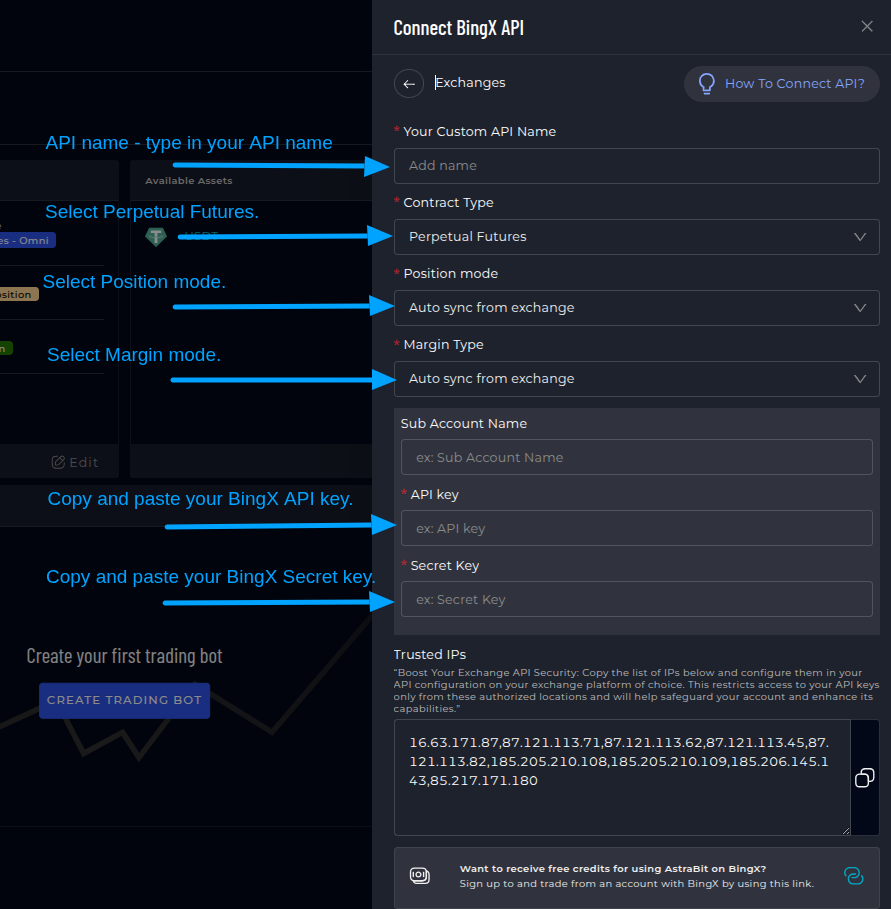
Step 7: Connecting BingX API to AstraBit
- Log in to your AstraBit Nexus Dashboard
- Navigate to Exchanges → Connect Exchange → BingX
Enter the following:
- Contract Type: → Select Perpetual Futures
- Position Mode: → Select Auto sync from exchange
- Margin Type: → Select Auto sync from exchange
- API Key: → Paste your BingX API Key
- Secret Key: → Paste your BingX Secret Key
Trusted IPs (Recommended)
- Copy the provided AstraBit IP addresses
- Add them to your BingX API IP Whitelist for enhanced security
Finalize Connection
- Click Connect
⚠️ Important:
Ensure your BingX API is configured with the following permissions:
- Read enabled
- Perpetual Funds Trading enabled
- Withdrawal / Transfer disabled
AstraBit:
- Can NOT withdraw funds.
- Can NOT transfer funds.
- ONLY executes trades based on your API settings.