
Getting Started · Help Center
How to Update Profile & Security Settings
Your profile and security settings keep your AstraBit account information accurate and up to date — supporting account access, platform functionality, and account management. This guide covers reviewing your profile details and configuring additional security settings in the dashboard.
At a Glance
What Lives in Your Profile
Personal Information
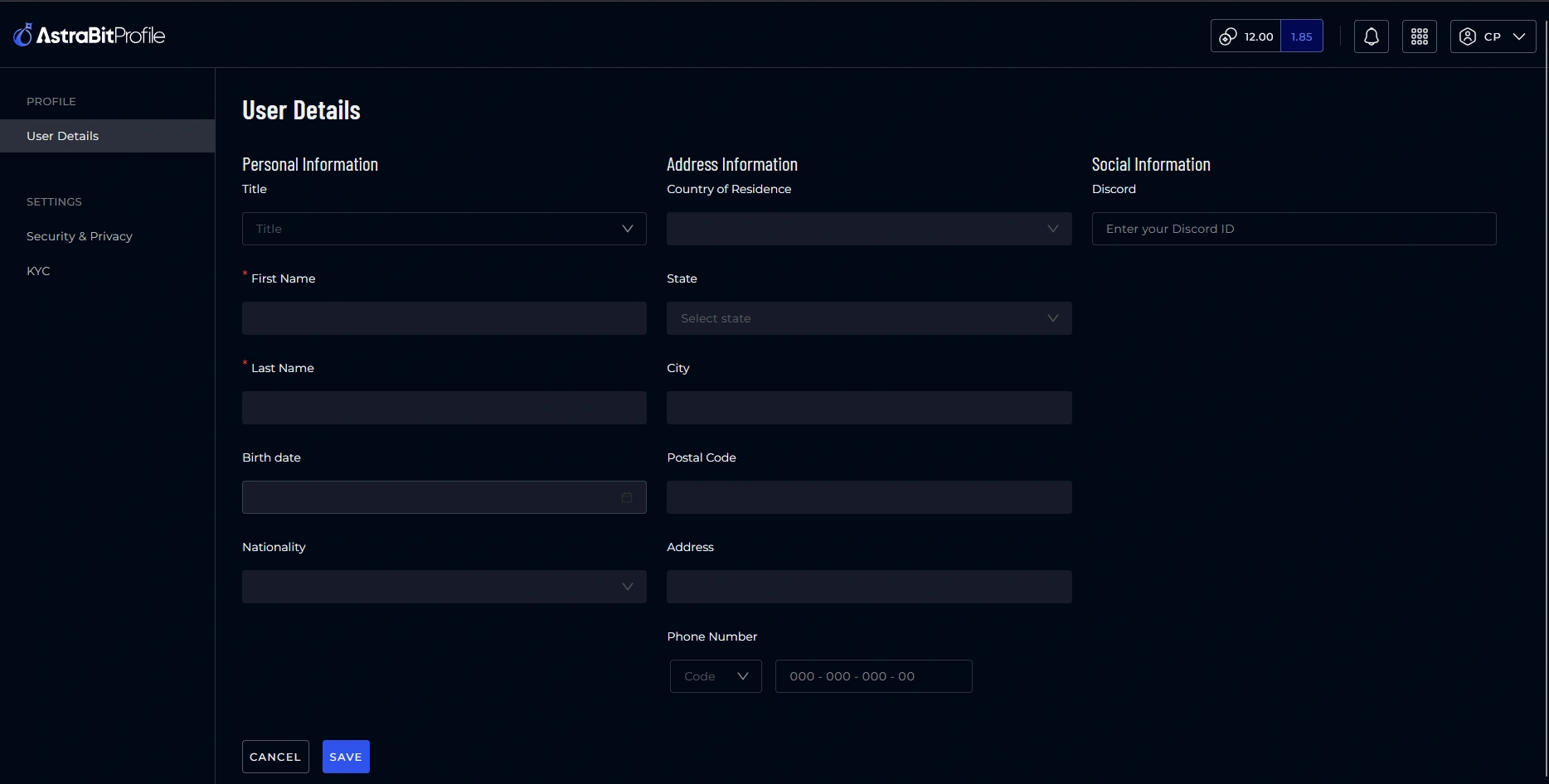
Title, Name, Birth Date, and Nationality. Your verification process should fill this automatically — if anything is inaccurate, open a support ticket.
Address Information
Address and Phone Number — also auto-filled by verification, also fixable via support ticket if anything’s off.
Social Information
Input your Discord ID to unlock all the channels in the AstraBit Discord.
Security & Privacy
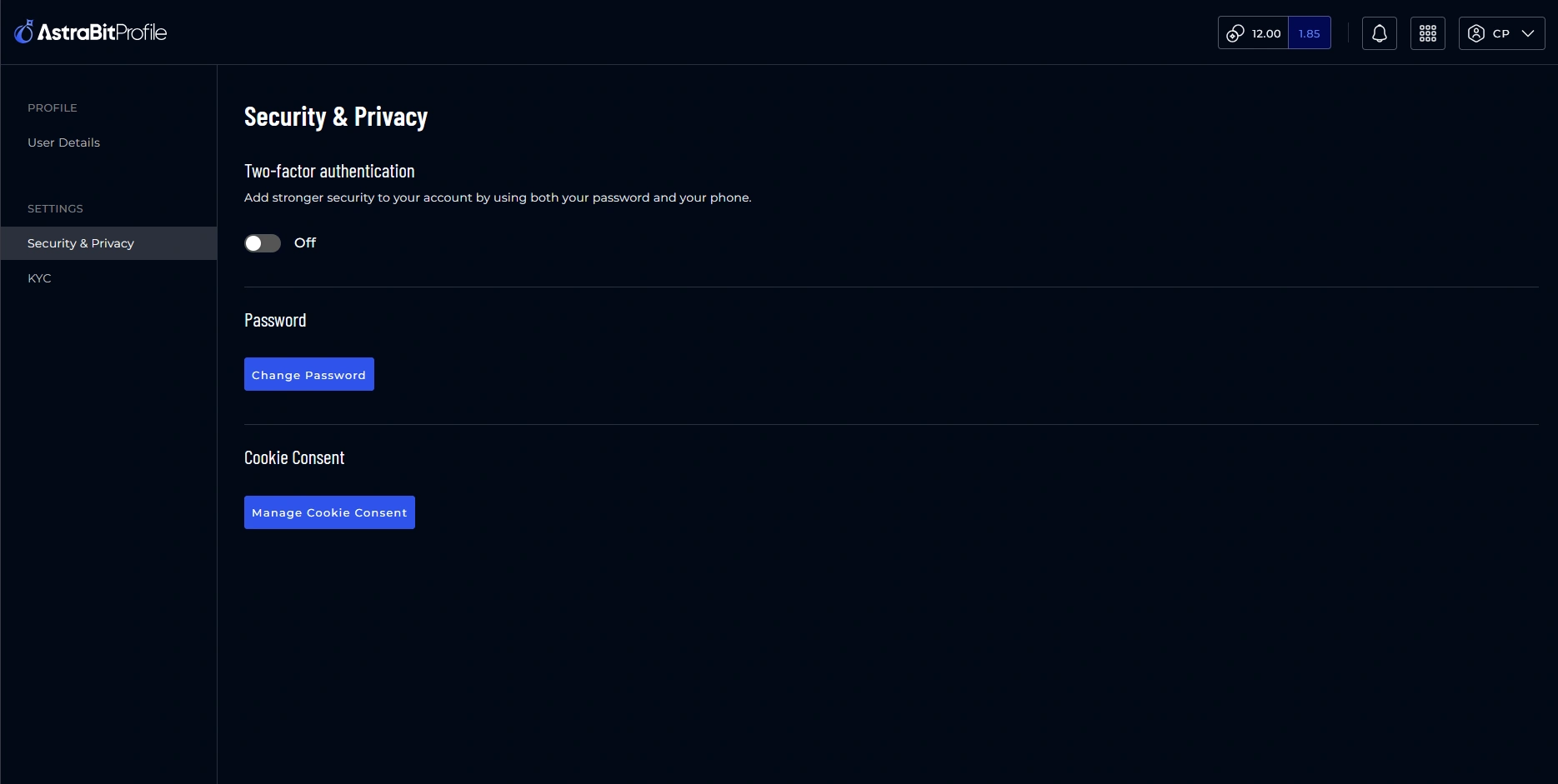
Two-Factor Authentication, password updates, and cookie consent — all managed from the same dashboard.
Step-by-Step
Two Quick Steps
Confirm Your Profile Information
- Log in to your AstraBit account.
- Navigate to your Profile section.
- Under User Details, review Personal Information, Address Information, and Social Information.
- Add your Discord ID under Social Information to unlock all Discord channels.
Verification should automatically fill your Personal and Address information. If anything is inaccurate, please open a support ticket.
Configure Security & Privacy Settings
- Enable Two-Factor Authentication.
- Update your password if needed.
- Manage your cookie consent.
Keep Going
Related Concepts
All Set
Account Secure, What’s Next?
With your profile current and 2FA enabled, you’re in good shape to start trading.
Need help along the way?
If you experience any problems, contact support by email or submit a ticket through Discord.
