
Exchange Connections · Help Center
Connect Bitget to AstraBit
Link your Bitget account to AstraBit with API keys so the two platforms can communicate securely — where to find API settings on Bitget, how to create and configure keys, and where to enter that information in AstraBit. Seven steps, start to finish.
New to Bitget? Register through this link to become Freemium-eligible — earn credits from trading volume that reduce or cover AstraBit costs. Technical setup guide only; not trading advice.
Before You Begin
What to Check First
Confirm these requirements before attempting to connect your Bitget Futures account to your AstraBit Nexus account via API.
Futures Trading
You’ll be trading with USDT, USDC, or COIN-M Futures from your Bitget derivatives account.
Fund Before You Connect
Keep a minimum balance of at least $150 in your derivatives/futures wallet.
Passphrase Is Forever
Bitget requires a Passphrase to authenticate API requests. If lost, it cannot be recovered — you’d need to create a new API key. Store it securely.
Least-Privilege API
Your API key only needs Read and Futures trading permission. Withdrawal and transfer permissions stay disabled — AstraBit never needs them.
Step-by-Step Setup
Seven Steps,
Start to Finish
Create your Bitget API key, lock down its permissions, and connect it in AstraBit.
Required Bitget Configuration
- Trading: USDT, USDC, or COIN-M Futures
- Minimum balance: $150+ in futures wallet
- API permissions: Read + Futures trading only
- Withdrawal / Transfer disabled
You’ll also set a Passphrase during API creation — AstraBit asks for it when connecting.
Log In & Open API Management
- Log in to your Bitget account.
- Click your Profile icon (top right).
- Select API Management.
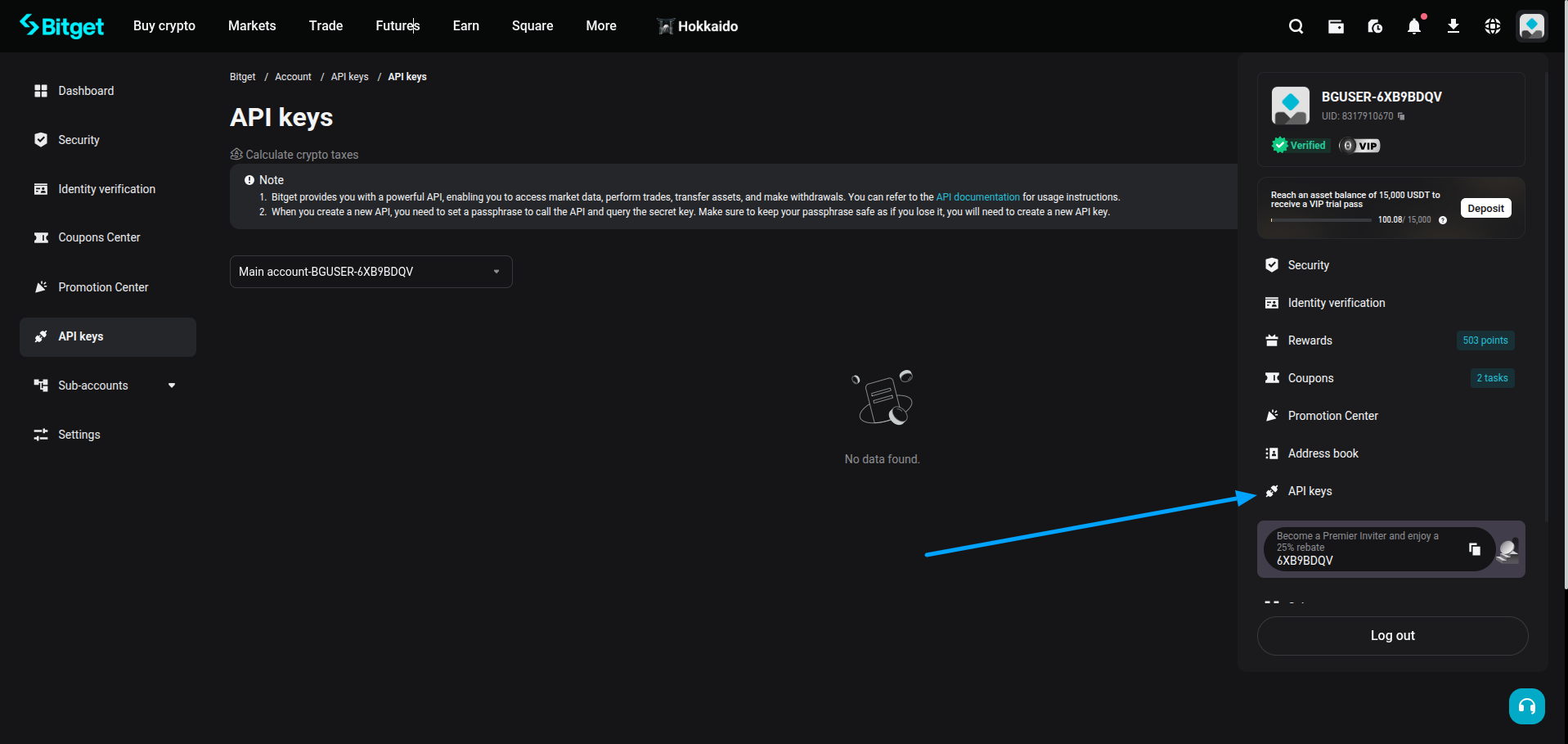
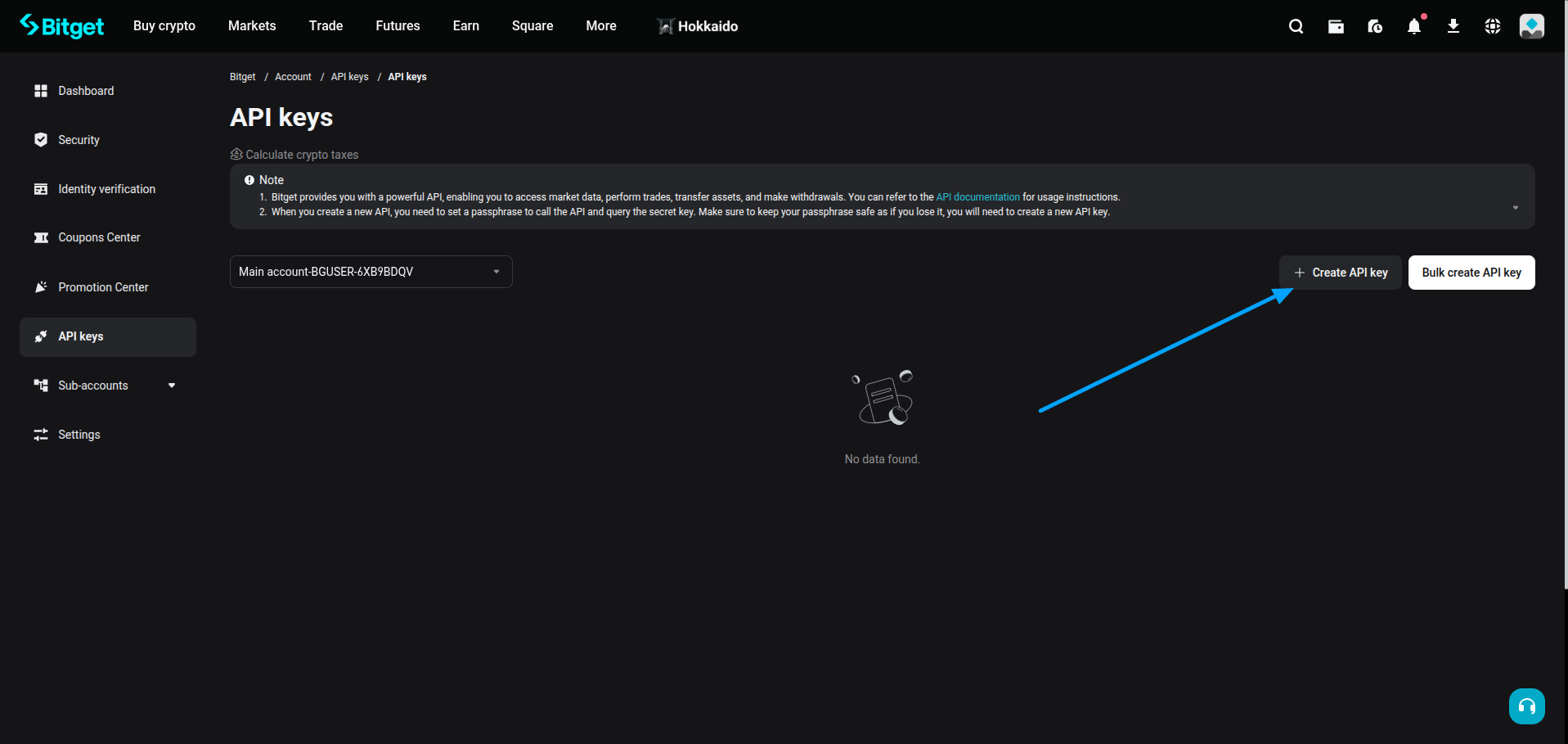
Create API Key
- Click Create API Key.
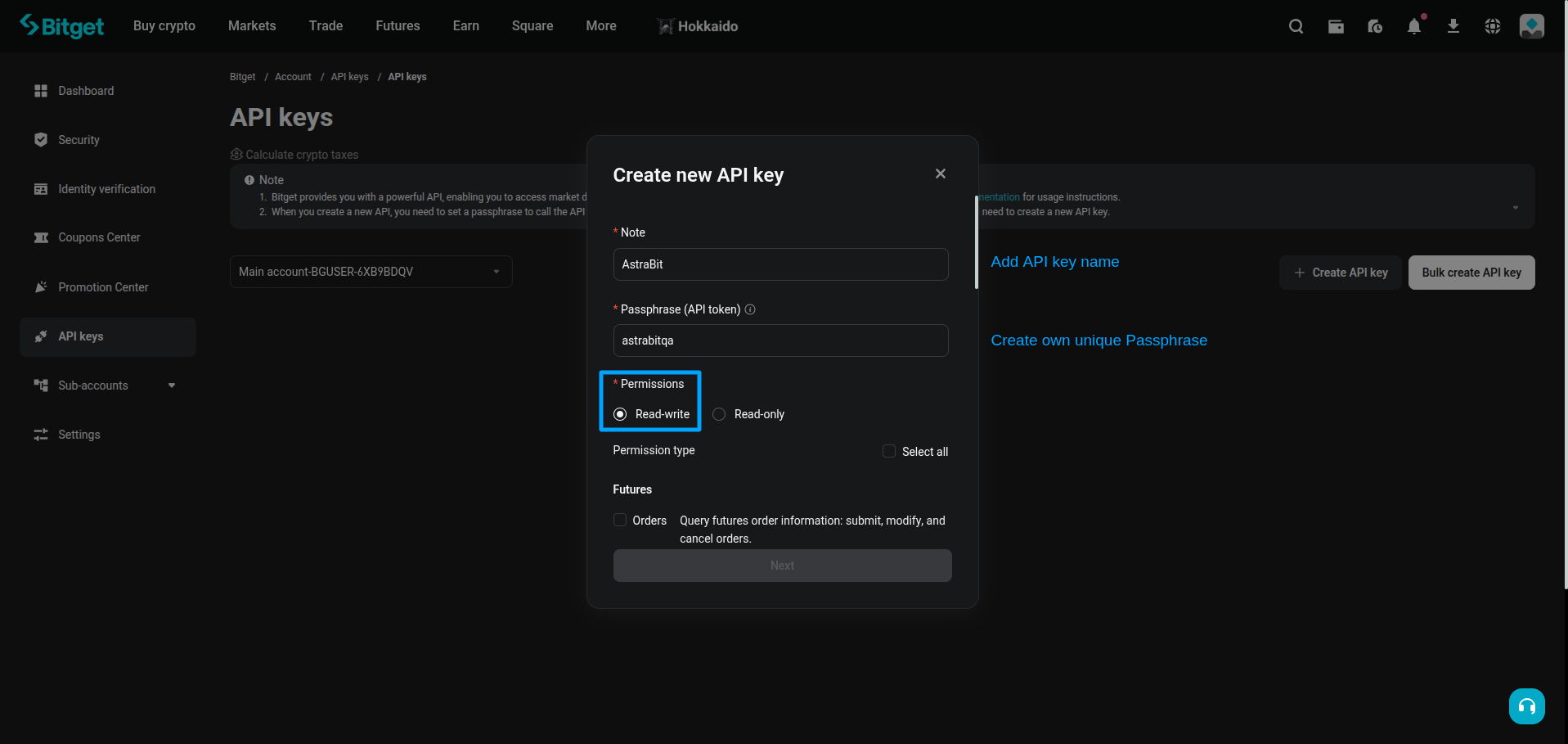
Configure API Settings
- Enter an API name (e.g., AstraBit).
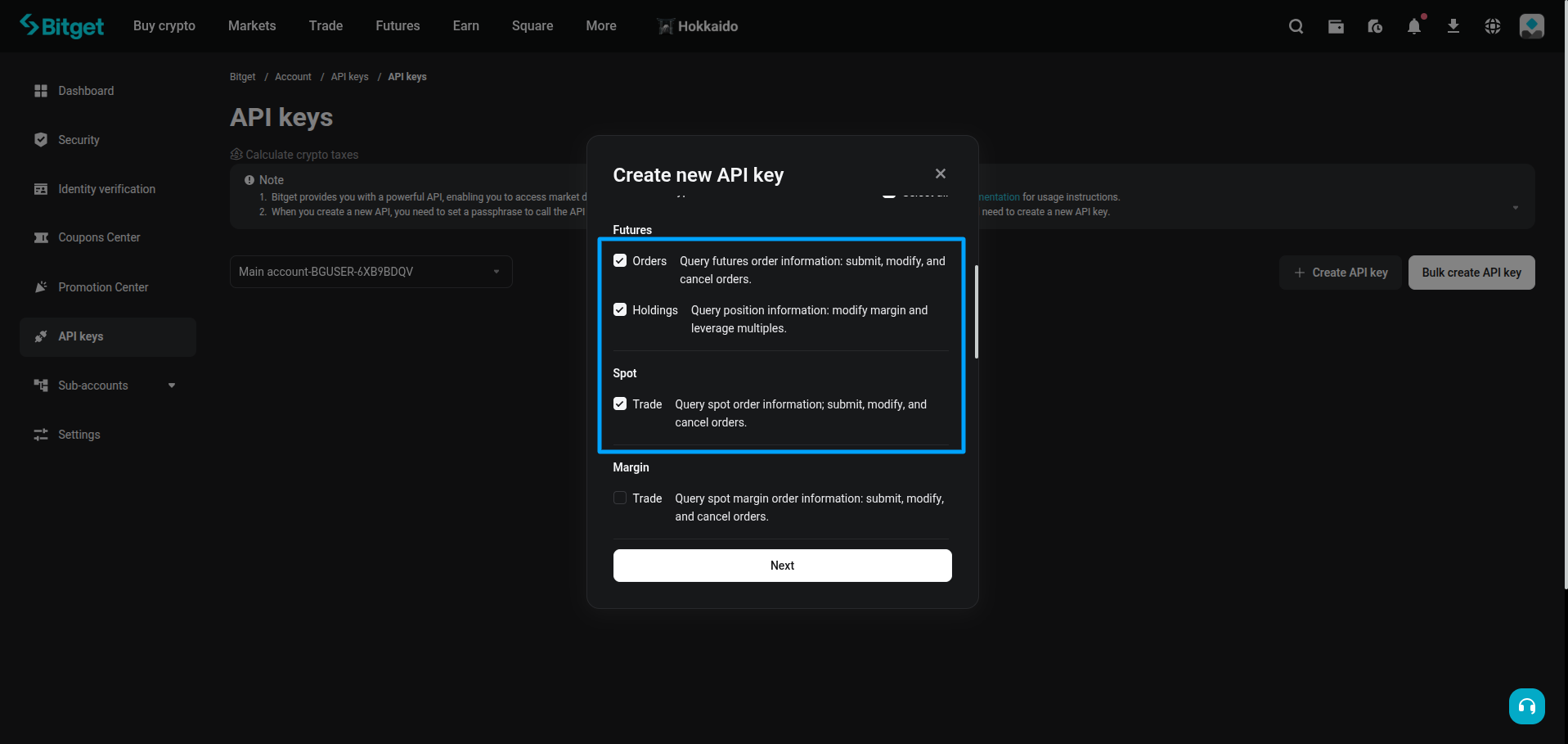
- Set permissions:
✓ Enable
- Read permission
- Futures trading permission
✕ Disable
- Withdrawal
- Transfer
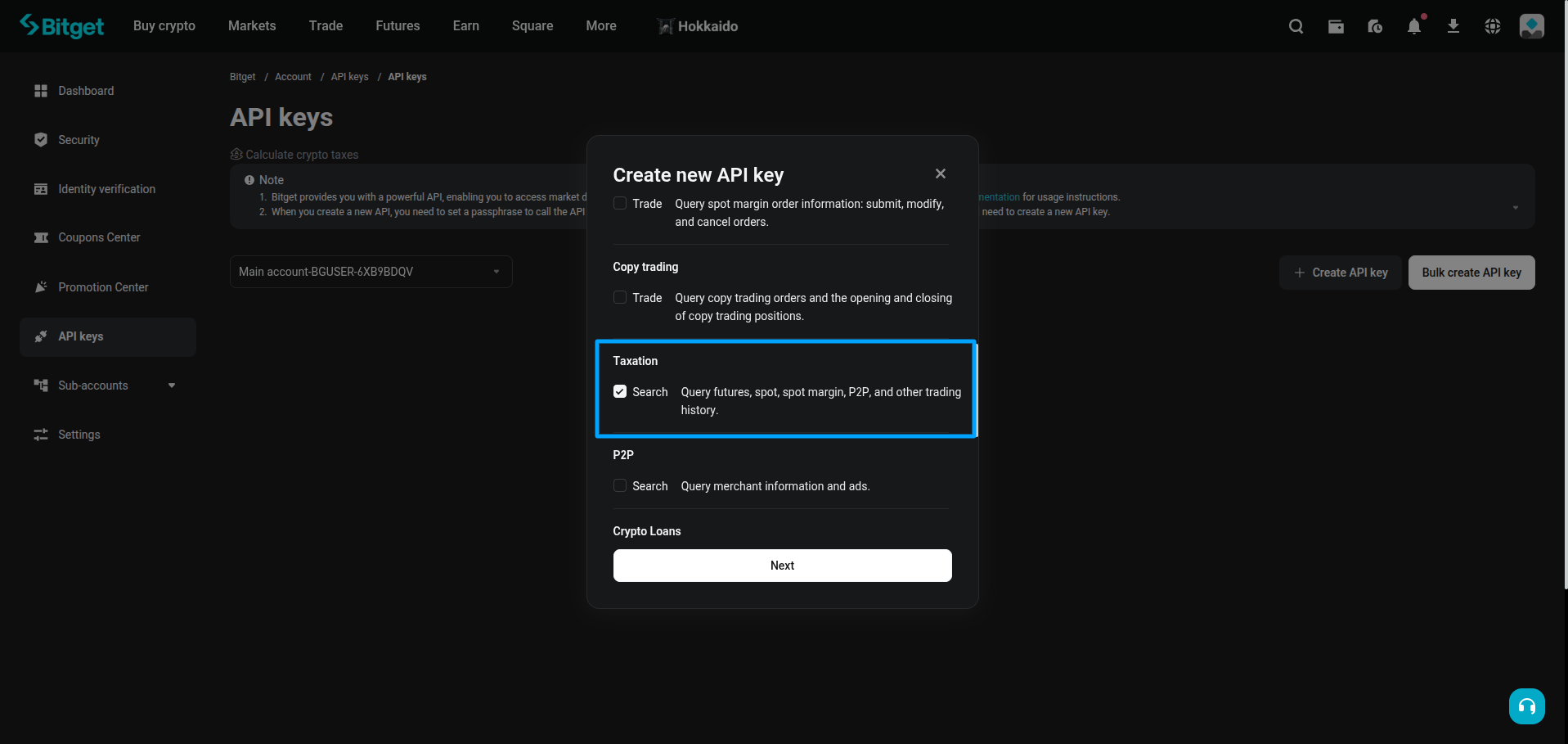
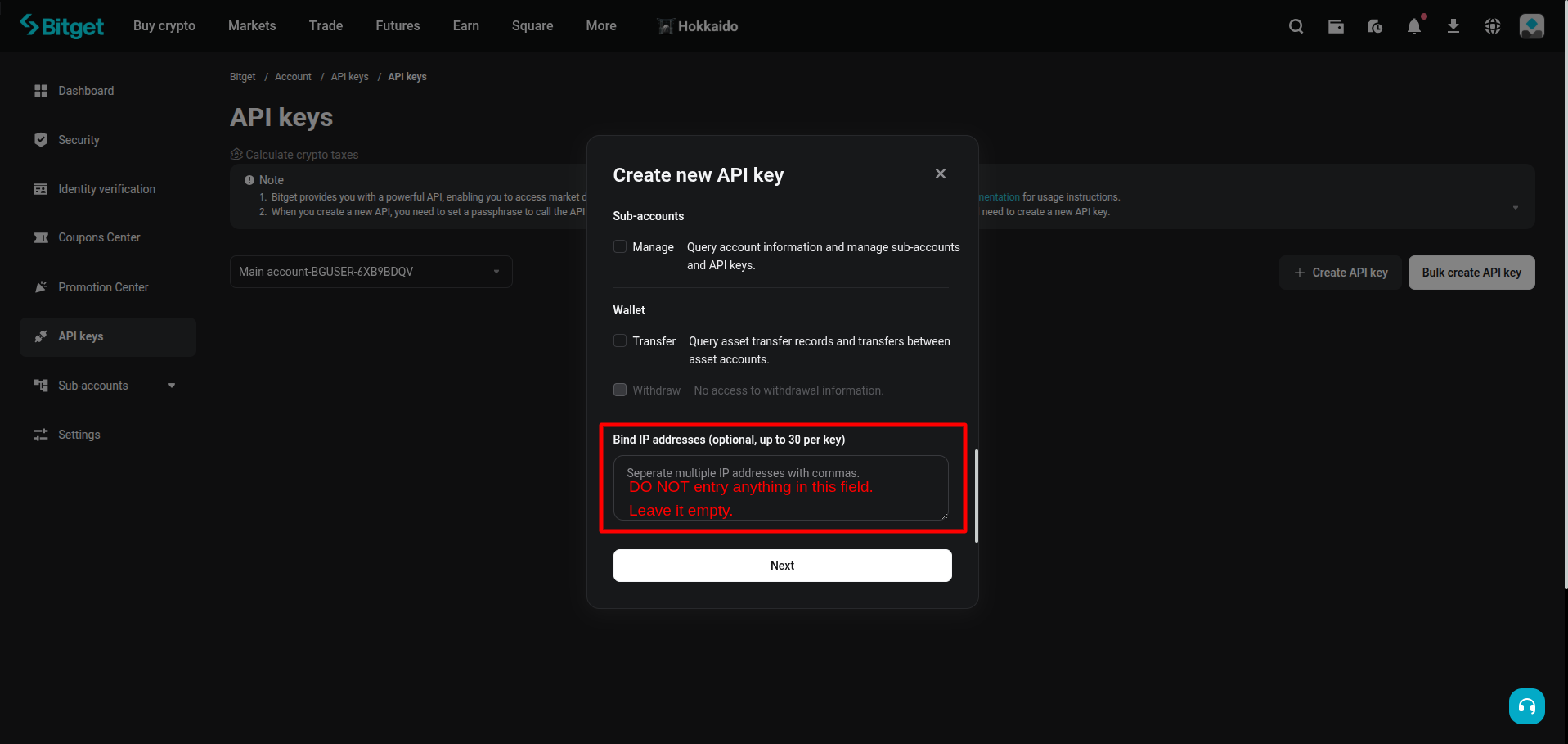
Set API Security
- Create a Passphrase — you will need this in AstraBit.
- (Recommended) Add AstraBit IPs to the whitelist.
The Passphrase authenticates API requests and unlocks access to your Secret Key. Store it securely — if lost, it cannot be recovered and you’ll need to create a new API key.
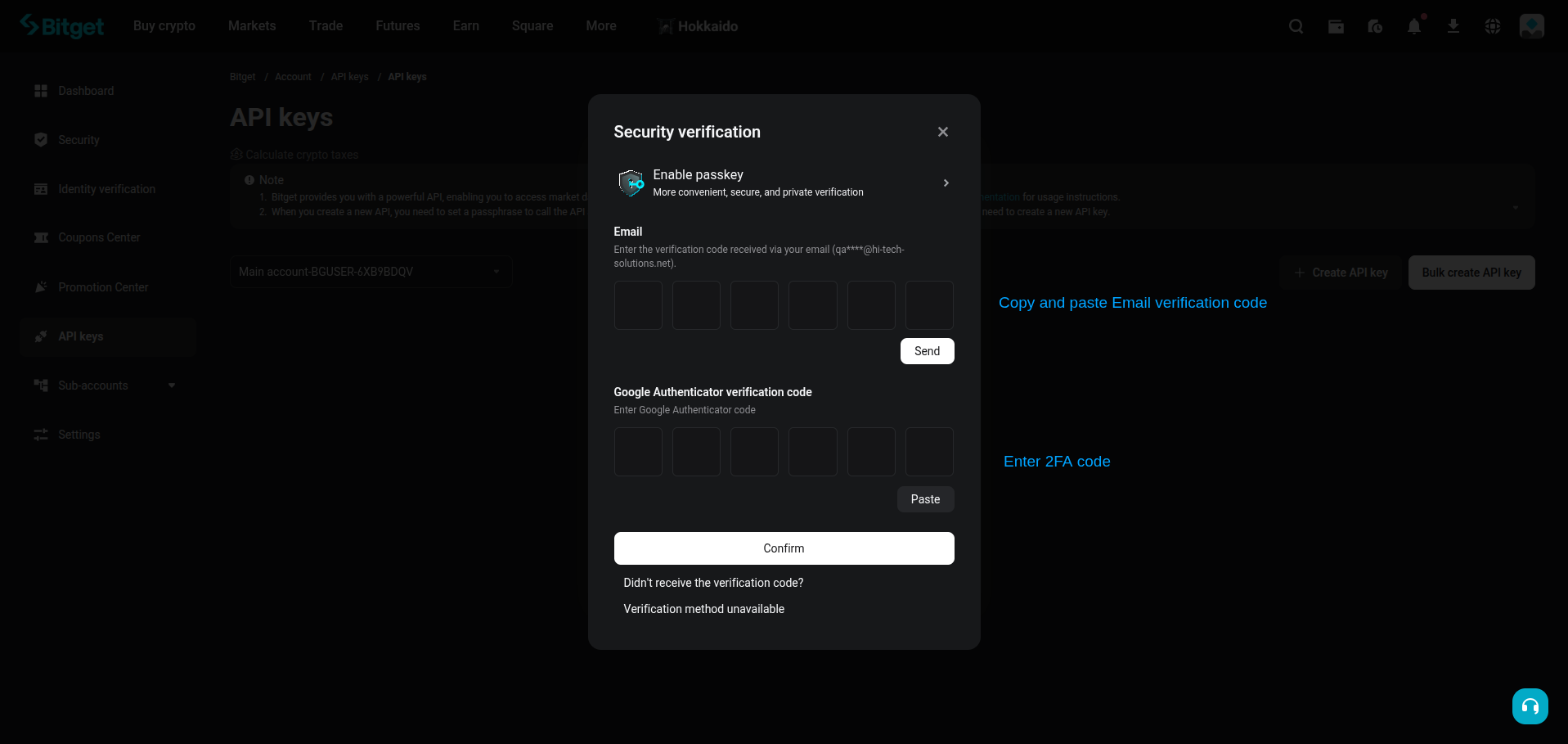
Complete Security Verification
- Enter your email code, SMS code, and Google Authenticator code (if enabled).
- Click Confirm.
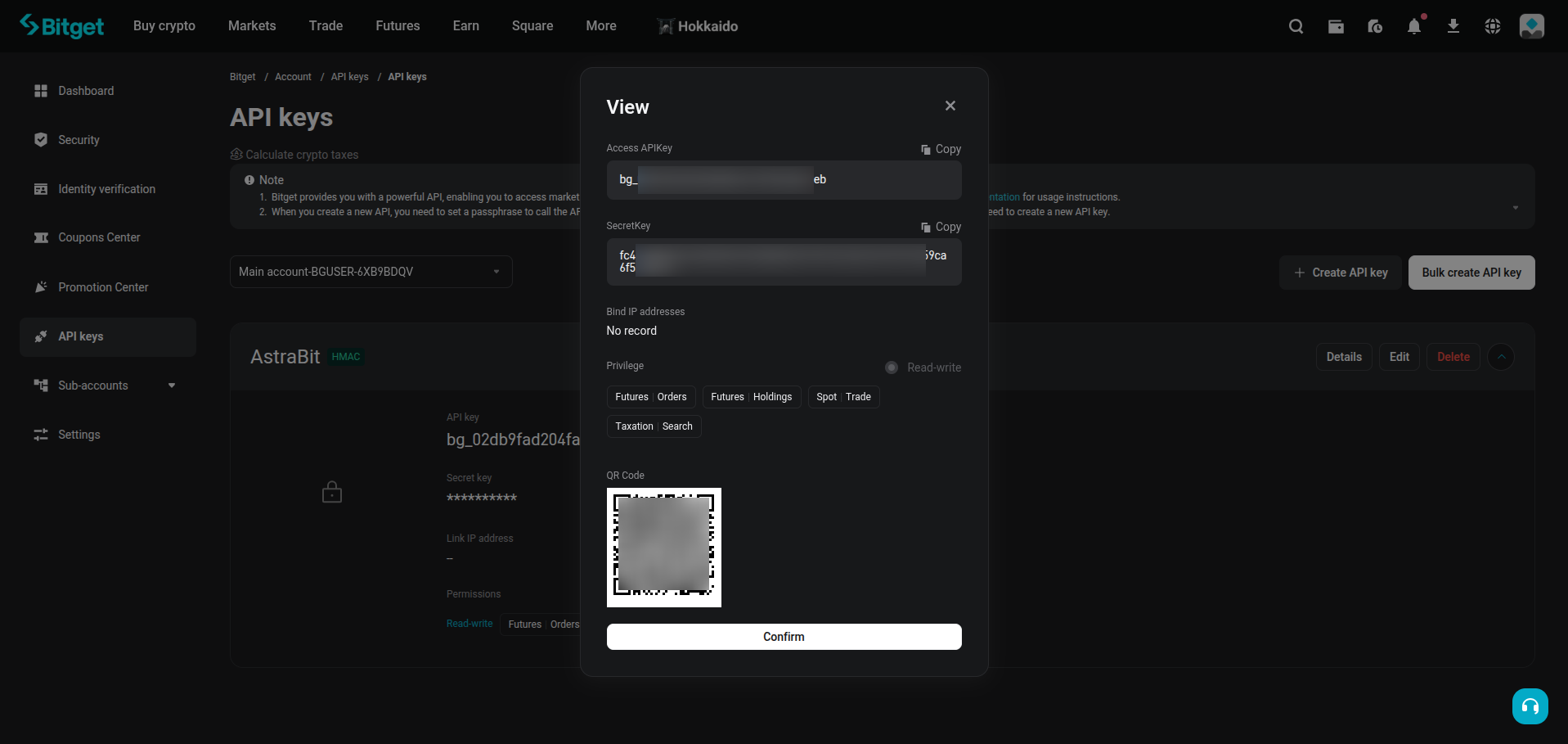
Copy API Credentials
- Copy your API Key.
- Copy your Secret Key.
- Keep your Passphrase with them.
Attention: the Secret Key is only shown once — store it securely.
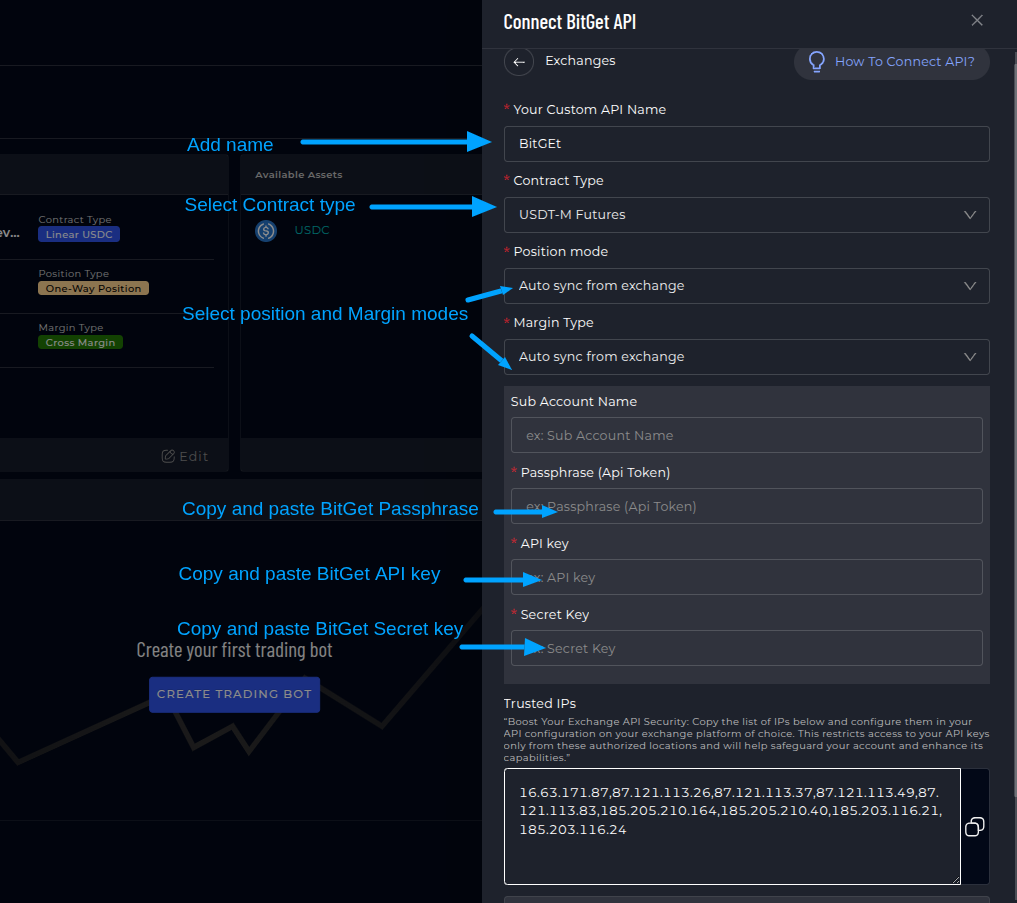
Connect Bitget in AstraBit
- Log in to your AstraBit Nexus Dashboard.
- Navigate to Exchanges → Connect Exchange → Bitget.
- Enter:
- API Name: anything you like
- API Key, Secret Key, and Passphrase: from Step 6
- Contract Type: USDT Futures (or applicable)
- Position Mode: Auto sync from exchange
- Margin Type: Auto sync from exchange
- Click Connect.
Final Check
API Configuration Checklist
Before you create a bot, make sure your Bitget API has:
Need a Hand?
If you experience any problems, contact support by email or submit a ticket through Discord.
Security Reminder
Your Keys, Your Funds
API permissions strictly limit what AstraBit can do with your Bitget account.
Cannot Withdraw
AstraBit cannot withdraw funds from your account. Ever.
Cannot Transfer
AstraBit cannot transfer funds between accounts or wallets.
Trades Only
AstraBit only executes trades via the API permissions you grant.
Connected? Put it to work.
Your Bitget API is live in the Nexus dashboard. The next step is creating a trading bot and linking it to a strategy.
